Clusters
What are clusters typically used for?
Clusters are most commonly used to:
Apply different discount percentages to different product variants
Create wine club perks that only apply to selected variants
Define exclusive products for specific loyalty tiers
Support complex loyalty or pricing structures without duplicating products
 Clusters are an advanced feature. If you are offering one simple discount across all products, clusters are not required. Clusters are most useful when you need different discounts or rules for different product types or variants (for example, standard bottles vs magnums, or wine vs non-wine products).
Accessing clusters
To view and manage clusters:
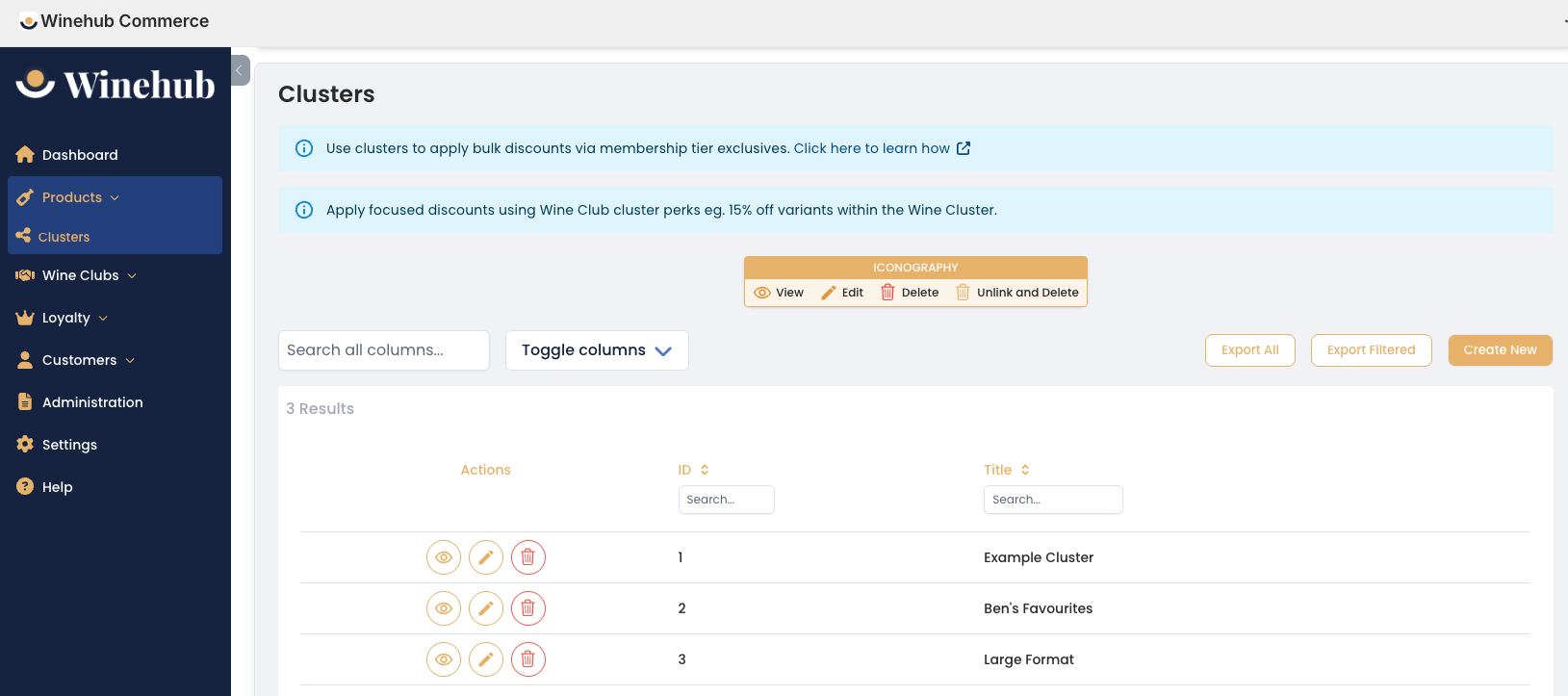
Navigate to Products → Clusters
You’ll see a list of all existing clusters
Creating a new cluster
Manual cluster – add individual product variants one by one
Dynamic cluster – automatically include variants based on defined criteria
Click Create Cluster to begin.
Option 1: Manual cluster creation
Manual clusters are best when:
You have a small, fixed set of variants
You want full control over exactly what is included
The cluster contents are unlikely to change often
Click Create Cluster
Enter a Cluster Title (use a clear, descriptive name)
Select Manual cluster type
Click Add Existing Product Variant
Search for and select the variants you want to include
Save the cluster
Option 2: Dynamic cluster creation
Dynamic clusters automatically include product variants that match rules you define. As products are added or updated, the cluster will stay in sync without manual maintenance.
Dynamic clusters are ideal when:
You have large or changing product ranges
You want discounts to apply automatically to new products
You’re building scalable loyalty or pricing structures
Click Create Cluster
Enter a Cluster Title
Select Dynamic cluster type
Define one or more criteria rules
Save the cluster
Tag
Product type
Variant type
Price
Title
Variant title
SKU
Barcode
Weight
Multiple criteria can be combined to create highly specific clusters.
Viewing cluster details
To view an existing cluster:
Click the View icon next to a cluster
You’ll see:
Cluster title
Included product variants
Any linked membership tiers or perks
Editing a cluster
You can edit a cluster at any time:
Change the cluster title
Add or remove product variants (manual clusters)
Update criteria rules (dynamic clusters)
Using clusters with wine club perks
Open the relevant Wine Club
Enter Edit mode
Scroll to Select Loyalty Perks
Click Add Perk
Choose Percentage Off Clusters
Select one or more clusters
Define the discount
Save
 You can apply one discount percentage across multiple clusters if required.
Using clusters for loyalty tier exclusive products
Clusters can also be linked to Loyalty Tiers as exclusive products.
Navigate to Loyalty
Edit the desired tier
In the Exclusive Products section, click Add Cluster
Select the cluster and save
All product variants in the cluster will now be exclusive to that tier.
Deleting a cluster
There are two possible delete actions:
Direct delete (red icon)
Available when the cluster is not linked to perks or membership tiers
Unlink and delete (gold icon)
Required when the cluster is currently in use
You must remove it from all linked perks or tiers before deletion
Related Articles
Perk Cluster Discounts
Applying Bulk Discounts Using Clusters and Loyalty Tiers 1. Create a New Cluster Create a manual or dynamic Cluster. 2. Assign the Cluster to a Loyalty Tier Open the Loyalty section in WineHub. Select the desired tier and expand the Exclusive ...Club Perks
Wine clubs are about more than just wine; they often come with exclusive perks to entice members and add value. Winehub provides robust tools for customising club-specific perks, allowing you to assign them to all delivery frequencies or tailor them ...Glossary of Key Terms
This glossary defines the key terms used throughout Winehub. Because Winehub integrates wine clubs, loyalty, allocations, referrals, POS, Shopify and payment gateways, some terminology overlaps. This guide is designed to give you clarity across ...