Theme Blocks & Apps
Winehub has a selection of theme blocks and app embeds that allows you to add Winehub functionality and data to your Shopify website.

Winehub is only compatible with Shopify 2.0 themes. You may experience theme conflicts when using theme blocks and app embeds if you are not using a 2.0 theme.
1. Club Signup App
The signup app is essential and must be added to your Shopify theme so that customers can signup to wine clubs on your website. There are two versions of the Signup app;
- Wine Club Listing - This version of the app block shows the standard 'club selection' screen and is the easiest way to integrate the signup process to your website.
- Wine Club Signup - This version allows you to skip the initial club selection screen and instead link directly to the setup of each club individually (you need to specify each club by its ID). This allows you the flexibility to use your own 'club selection' page and link to each club directly if you prefer.
VIDEO GUIDE: Adding the Signup App to your theme
VIDEO GUIDE: Styling and Configuring the Club Signup App
To add the Wine Club Listing app block to your Shopify theme, follow these steps;
- Click on Online Store / Themes / Customise
- Create a new page template called 'clubs' (if you use 'default' the signup app will appear on every page on your site)
- In the Left-Hand menu, 'Add section' in the place you'd like to add your wine clubs
- Select Apps, then 'Wine Club Listing' and then save your template
- Use the 'Sign Up App Settings' in Winehub to customise the look and feel of the app (video below)
- Optionally, customise and enable the Product Details Popup
To add the Wine Club Signup app block, follow these steps (more detailed instructions in video below);
- Click on Online Store / Themes / Customise
- Create your own club selection page (ie. without any Winehub apps)
- Create new theme templates for each of your clubs (ie. 4 clubs = 4 templates)
- In the Left-Hand menu of each template, 'Add section' in the place you'd like to add your wine club
- Specify the club by adding the club ID in the right-hand column and then save your template
- Use the 'Sign Up App Settings' in Winehub to customise the look and feel of the app (video below)
- Optionally, customise and enable the Product Details Popup

Your website designer can do even more styling of the Signup App via CSS. The Component CSS Classes can be viewed by clicking the gold button at the bottom of the Sign Up App Settings in Winehub
If you're unable to see your clubs in the signup app, check their 'publication' status in Winehub. Published should say "yes" to be visible on signup. To change the status, edit the club and set published to the desired value.
2. Customer Portal App
Legacy Customer Accounts have been deprecated by Shopify as of March 2026. If you are already using legacy accounts, your Winehub Customer Portal will continue to function as expected. However, Shopify no longer supports this account type for new stores, so you may wish to consider one of the alternative options below.
The Customer Portal App allows a customer to manage their Wine Club, Loyalty Program, Referrals and Allocation via your website. After activating the Winehub customer portal in your theme settings, you have two different options for integrating it into your Shopify website
- Option 1 - Navigation Link - This option maintains the regular Shopify Customer Account and places a link to the Winehub Customer Portal interface in the primary navigation. This is easiest method to set up but requires an extra step for members to access their membership details. Consider this option if you are using other apps that require the regular Shopify customer account.
- Option 2 - Portal Redirect - This options edits your Shopify theme code to route customers directly to the Winehub Customer Portal upon login. This requires a more advanced set up but results in a smoother user experience. This option is not suitable if you have other apps installed that require the regular Shopify customer account.
Activating & Styling the Winehub Customer Portal
- Click on Online Store > Themes > Edit Theme
- In the Left-Hand menu, select App Embeds (third option down)
- Activate the Winehub Customer Portal Redirect
- Save your changes
- Customise the look & feel of your portal at Settings > Customer Portal Settings
VIDEO GUIDE: Styling & Configuring the Customer Portal
Your website designer can do even more styling of the Customer Portal via CSS. The Component CSS Classes can be viewed by clicking the gold button at the bottom of the Customer Portal Settings in Winehub.
Option 1 - Navigation Link
This method uses the new Shopify Customer Account interface and places a link on the customer account menu to redirect to the standard Winehub customer portal. For a more seamless user experience, consider the more 'advanced' option below which edits your Shopify theme code to redirect all customers immediately to the standard Winehub customer portal.
1. If migrating from Legacy Accounts, click Upgrade under Shopify Settings > Customer Accounts
2. Select Menus from within Content and navigate to the Customer account main menu settings.
3. Click Add menu item.
4. Enter the label name as desired and input the link to the portal and save.
https://mystore.myshopify.com/apps/winehub
[IMPORTANT: replace mystore with your Shopify store name]
https://mystore.myshopify.com/apps/winehub
[IMPORTANT: replace mystore with your Shopify store name]
5. You should now see a new link in your Shopify Customer portal
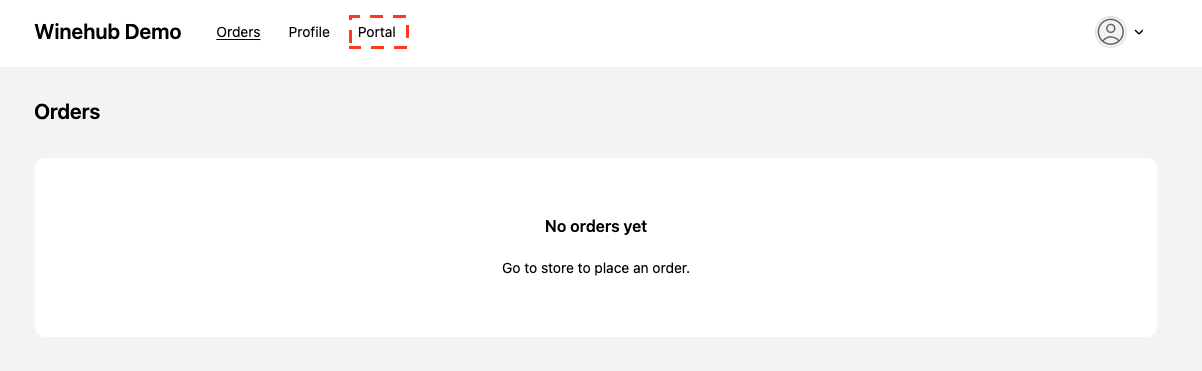
Option 2 - Portal Redirect
This method edits your Shopify theme code to redirect the user to the Winehub Customer Portal, allowing a smoother user experience for members. It requires editing your Shopify liquid code, so is only recommended for more advanced users. We recommend creating a 'duplicate' of your Shopify theme before performing these changes in case there are any errors. This method is not suitable if you use any other apps that require the standard Shopify Customer Account.
1. If migrating from Legacy Accounts, click Upgrade under Shopify Settings > Customer Accounts
2. Navigate to Online Store in Shopify and select Edit code to open up the storefront code editor.
3. Select the Search icon from the left hand navigation and search for routes.account_url (you may also need to repeat these steps for routes.account_login_url too)
Generally you will find 4 search results that look like this:
Generally you will find 4 search results that look like this:
4. For each of these instances, use the code editor (on the right hand side of the screen) to replace the href with the following content
"/customer_authentication/login?return_to={{ "/apps/winehub" | url_encode }}"
"/customer_authentication/login?return_to={{ "/apps/winehub" | url_encode }}"
If formatted correctly it should look as follows.
href="/customer_authentication/login?return_to={{ "/apps/custom" | url_encode }}"5. Finally, save the theme and attempt to log in. After inputting the one-time code, you will be automatically redirected to Winehub's customer portal.
3. Metafields App Block
Metafields are Winehub specific fields that customise Shopify for wine (eg. Varietal, Vintage, Alcohol %, Tasting Notes etc). You have the option to use some or all of this these metafields on your website to enrich your product pages. Check out the instructions or view the video below for more detailed instructions of how to use these fields.
Add a metafields block
Add a metafields block
- Click on Online Store / Themes / Customise
- Navigate to your product template (you can also use a different template if you like)
- In the Left-Hand menu, 'Add section' in the place you'd like to add your meta fields
- Select 'Apps' then Product Metafields
- In the Right-Hand menu, choose which fields and how you'd like them to be displayed
- Save your changes
Add metafields individually
You may also specify metafields individually within regular content blocks rather than using the full block above. Full details in the video below.
- Click on Online Store / Themes / Customise
- Navigate to your product template (you can also use a different template if you like)
- Add a 'text block' or click on an existing text block
- In the Right-Hand menu at the top right of the text field, click the stacked disc icon
- Select each meta field that you want to include in your field
- Save your changes
VIDEO GUIDE: Adding Metafields to your Website
4. Discount Pricing App Embed
To display pricing on the product page the customer has earned from perks via tiers, clubs, or exclusive products our discount pricing embeddable component can be enabled when customising your Shopify theme. Select the Winehub Extension app block from the list of app blocks to enable, via the app embeds menu below theme settings in the Shopify theme editor. The logged in customer will now see the perk price/s available to them next to the retail price* on the product page.
*May require some manual configuration during setup by support to ensure compatibility with custom storefront themes. Contact support@winehub.io for support.
This can be toggled on to add pricing to the product page. Toggle the extension on and enable the pricing display.
Example applied to the theme.
Pricing will only display for logged in members that are eligible for the club / tier discounts.
For best results ensure your theme uses a standard class naming system for the retail price elements.
Compatible class names
- price__regular
- price__content
- prodPrice
- price-ui
- modal_price
5. Product Reviews & Product Awards App Blocks
These two features allow you to display product reviews and product awards on your product pages
Activate the blocks in your Shopify settings
- Click on Shopify / Settings / Custom Data
- Scroll down to Metaobjects Definitions
- Click on each app block (ie. Product Reviews & Product Awards) and enable Storefront access
Add a block to your theme
- Click on Online Store / Themes / Customise
- Navigate to your product template (you can also use a different template if you like)
- In the Left Hand menu, 'Add section' in the place you'd like to add your meta fields
- Select 'Apps' then Product Awards or Product Reviews
- In the Right Hand menu, customise how you'd like them to be displayed
- Save your changes
6. Subscriptions Options App Block
This app block allows you to display subscription options on your product pages.
- Click on Online Store / Themes / Customise
- Navigate to your product template (you can also use a different template if you like)
- In the Left Hand menu, 'Add section' in the place you'd like to add your subscription options
- Select 'Apps' then 'Winehub Subcription Options'
- In the Right Hand menu, customise how you'd like your subscriptions to be displayed
- Save your changes
Ensure your theme uses compatible add to cart form elements. Contact support if the block is not rendering on your theme.
VIDEO GUIDE: Embedding the Subscriptions App Block
Related Articles
Getting Started Checklist
This article is designed to walk you through the setup process step by step, ensuring you're up and running with Winehub as quickly as possible. It is designed to provide simple instructions and links to additional articles where you can find more ...Customer Portal
The customer portal app enhances the standard Shopify online account by adding features that allow customers to manage their club subscriptions, loyalty tiers, allocations, and exclusive products. To enable the customer portal app, you must configure ...General Subscriptions
A general subscription is a recurring order for a single product, such as a recurring 6-pack of Shiraz. Unlike wine clubs, general subscriptions do not include perks but are still an excellent way to encourage repeat purchases of a single product. ...Custom Themes
Theme settings can be found within both the Sign Up App Settings and Customer Portal Settings accordions. To save your current settings as a custom theme, provide a name for your theme and click the Save Custom Theme button. (This will not apply the ...Sovos ShipCompliant
Winehub’s integration with Sovos ShipCompliant provides compliance verification for every wine order - ensuring your shipments meet all relevant U.S. state and federal regulations. This guide outlines the setup process, available features, admin ...