Payment Methods
Changing Club Payment Methods
Customer Portal
The customer can update their club payment method by logging into the customer portal on your website and clicking 'Payment Methods'.
Shopify Admin
In Shopify admin, open the Shopify customer record. In the right hand column, click on the pencil icon in the Payment Methods module.
You can either update the existing details with new details OR email a secure link to the customer for them to enter online.

Customers using digital wallets, like Apple Pay, Google Pay or Shop Pay, must update payment details on their end. It is not possible for an admin to update these payment types, but you can send a link to direct people to the right place on their own device.
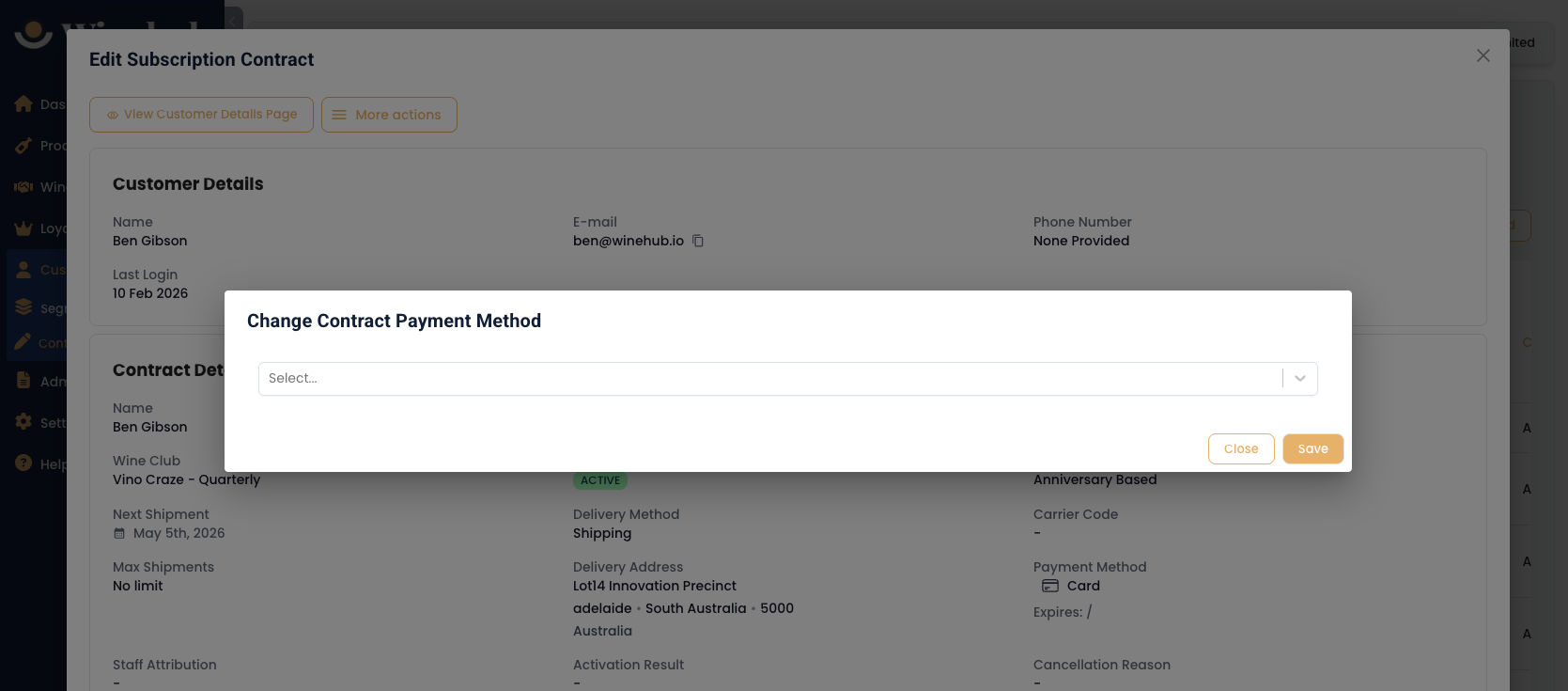
If the customer has multiple payment types saved in Shopify, you can change which card is charged for club orders in Winehub. Open the Contract in Winehub, click More Actions then Change Payment Method.
From here you can select the payment method you would like to attach to the contract. If the customer has multiple club memberships, you need to make these changes on each contract.
If you have Shopify Payments as your primary payment gateway and Stripe as a secondary gateway for migrated customers, any change of payment details via the Customer Portal or Shopify Admin will update the gateway for that contract to Shopify Payments.
Adding a Payment Method (Stripe Users Only)
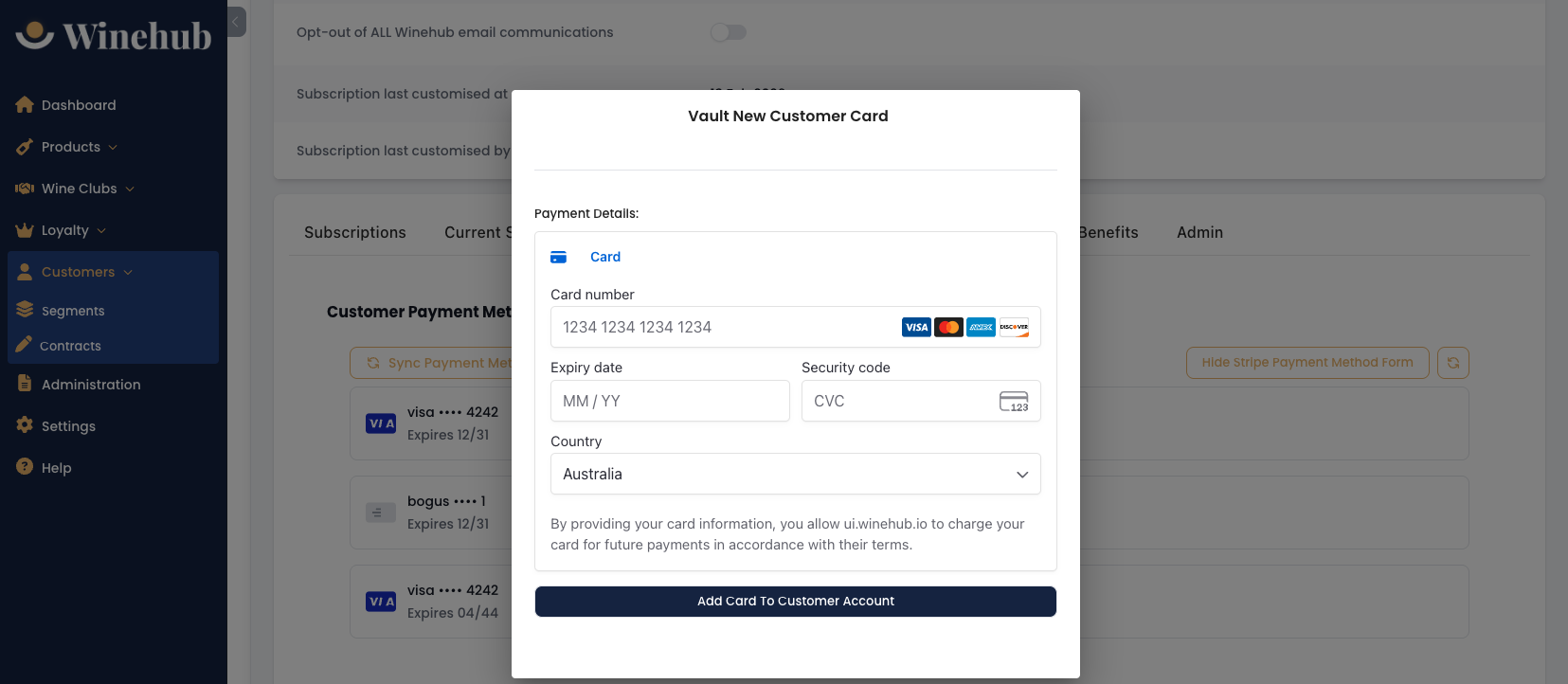
If you have Stripe connected to Shopify and Winehub you can add a Stripe payment method to a customer's account via Winehub. On the customer page in Winehub, click the Create tab then the green Add New Card via Stripe button. Enter the card details and click 'Add Card To Customer Account'. If successful, the card will be created in Stripe and then sync to Shopify. If unsuccessful, the error message can be viewed in your Stripe dashboard.
Understanding Club Payments
When migrating from another platform, it's common to use a primary payment gateway (e.g., Shopify Payments) for most transactions while retaining Stripe Subscriptions as a secondary gateway for migrated customers. In this setup, new club memberships created through the website will always process payments via the primary gateway. Meanwhile, payments for migrated club memberships will continue to be handled by Stripe Subscriptions until the customer's card details are updated or replaced. Once updated, the club contract automatically switches to billing via the primary gateway (e.g., Shopify Payments). This behaviour is a default feature of Shopify and can only be overridden by vaulting the card directly through the Stripe integration mentioned above.
Related Articles
Payment Provider Not Enabled
Issue During a club run you may notice that some or all orders have failed with the following error; Payment provider is not enabled on the shop Common Cause Generally this occurs when a payment method has been deactivated since the customer signed ...Stripe
Winehub integrates directly with Stripe to securely sync stored customer payment methods into Shopify - enabling seamless subscription and wine club management without unnecessary reprocessing. Stripe is also a key part of our migration pathway for ...Customer Profile
The Customer Profile in Winehub provides a comprehensive, tabbed view of each customer, including contact details, subscription activity, loyalty status, order history, benefits, payment methods, notes, and automated communications. Some information ...Creating a New Club Membership
There are three primary methods to create a new club membership in Winehub. Each method suits different sales environments and customer preferences. 1. Website Sign Up This method mirrors the customer experience and can be used in-store via a quick ...Manually Activating Subscription Contracts
During the migration process, it’s possible that a small number of member contracts may fail to activate automatically. If this occurs, you will be notified via email with a list of the affected contracts. In Winehub, unactivated contracts will ...